
Watch Tuli in action
Short, practical videos that show you how to create a WordPress website using AI — walking through every feature — from pasting an HTML page to building data-driven WooCommerce layouts. New tutorials are added all the time, so check back often.
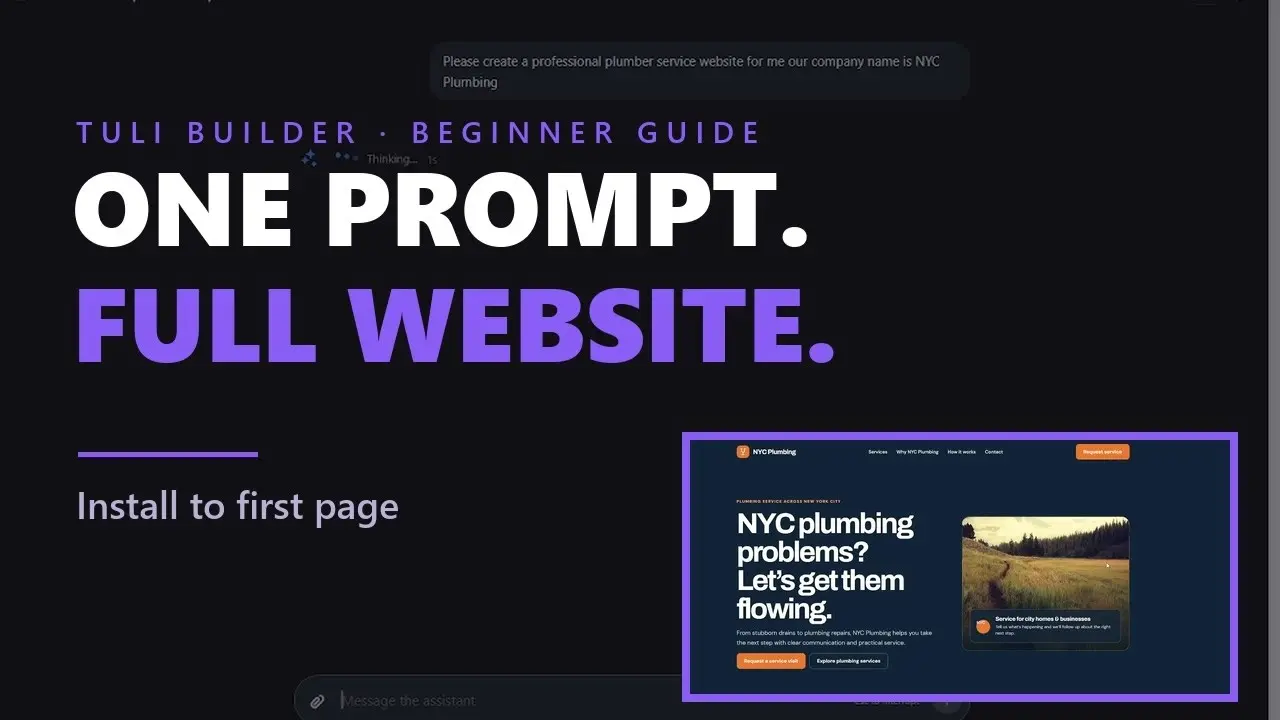
How to Get Started with Tuli Builder | Build a WordPress Site with AI

Build a WordPress website using Claude Code or any AI coding agent through the MCP server
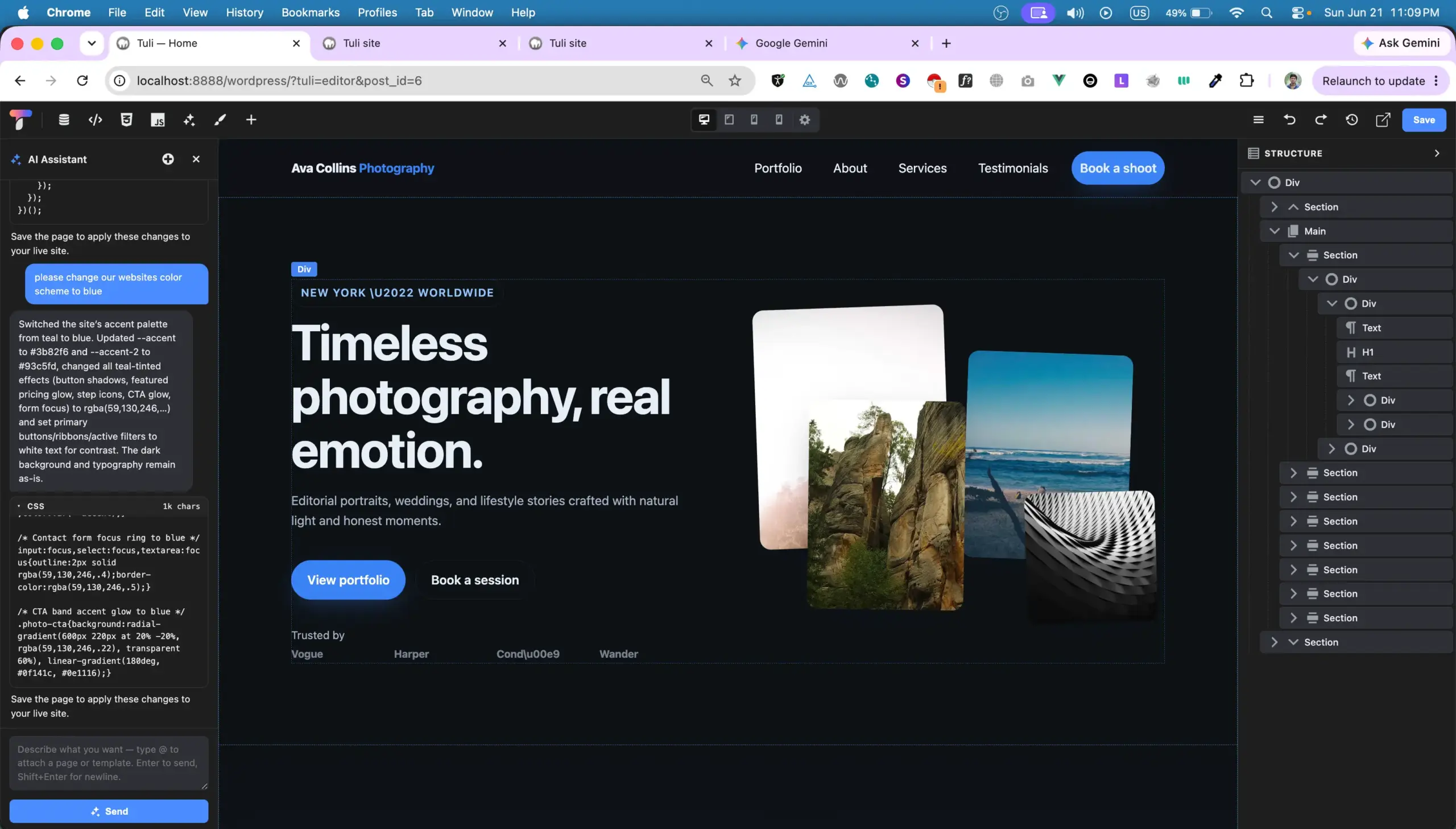
How our AI assistant can create a WordPress website and update your content for you

How to convert a vibe-coded website into WordPress and make it fully editable
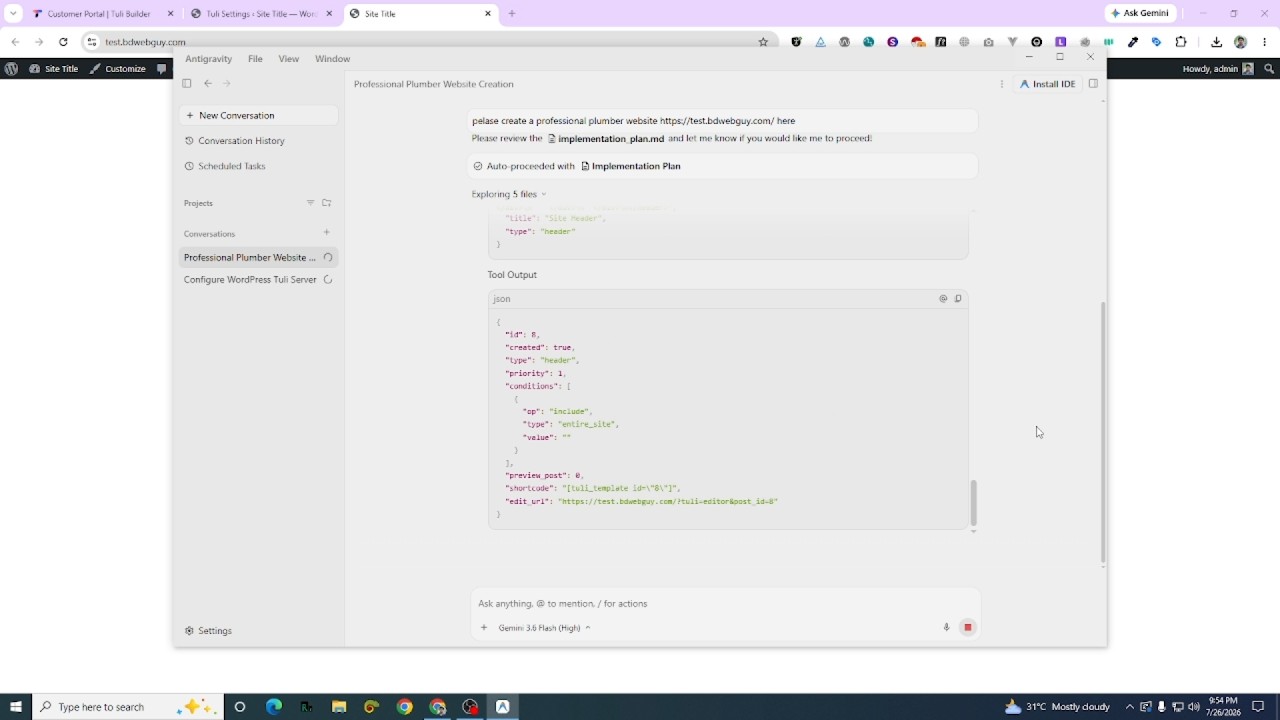
How to connect Antigravity with Tuli Builder and create a WordPress website
Read the tutorials
Prefer reading? Here is what each video shows, with the full transcript.
Build a WordPress website using Claude Code through the Tuli MCP server (5m59s)
Claude Code builds a complete five-page real estate website on a fresh WordPress install through the Tuli Builder MCP server: an ACF property post type, sample listings, a filterable properties page, header, footer, single property template and a working contact form.
Now, we will look at how we can completely build a website from scratch using Claude Code. We will not be doing anything manually here. We will just use Claude Code to build our website completely. So, we have a fresh WordPress installation on a test domain. I now go to the settings from the Tuli menu. In the settings, we will enable the MCP server option. After enabling it, we will get some instructions on how to connect Claude Code or any other AI agent to our website. Since I'm going to use Claude Code, I'm copying this specific instruction. Then, I'm opening my terminal and pasting the code. Next, I'm starting our Claude Code. Once it's running, I'll copy the website URL. Right now, Claude Code is connected to our website. Now, I'm just going to ask Claude Code, "Please create a real estate website for us with five pages and property listings. The listings should be using ACF to build a custom post type. And on our property page, it should also have filters to filter the properties according to the user's requirements. Filter the properties by price, etc." So, we hit enter and let's see what Claude Code does for us. If you look at the current front end of our website, we can see that it is currently completely blank. And we have instructed Claude Code to build a five-page real estate website where our custom post type will be created via ACF and on the front end there will be a page called properties with various filters so that visitors can easily filter properties based on their needs. Let's wait a moment and see what it does. We can see that Claude Code has started working. All right, it looks like Claude Code has finished setting up our website. Let's refresh the front end of our website to check it out. Yes, it looks like Claude Code has successfully built our website. Now, if you go back to our back end, we can see that a custom post type named properties has been created and Claude has added six demo properties here. So, let's check out the properties page. Let's see if the price filter works. Yes, it looks like our price filter is working perfectly. If we edit the page with our page builder, we can see that Claude Code pulled these properties from the database for us using the page builder's query loop. And these filters being used here are actually pre-built elements of our page builder, which we can also use manually to create any custom query or filter. Claude Code very smartly used our page builder elements and query system to pull the properties for us. Furthermore, we can see that a global header has been created for our header. A footer template has been created for the footer and a single property template has been created to display individual property pages. Now, if we go to our contact page, let's edit the contact page and see. A great feature of our page builder is that we can directly use any AI generated form here. As you can see, Claude Code has already set up the form action for us. We can change the email address here if needed. Or, if you don't want to use the page builder's form element, you can copy this code and paste it into Contact Form 7 or use any other form builder plugins shortcode here. However, our page builder's form element is highly convenient for setting up any form quickly since you don't have to create anything manually. You just change the settings and start using it.
How the Tuli Builder AI assistant creates a WordPress website (2m1s)
The built-in AI assistant builds a photographer portfolio website from one prompt, writing HTML, CSS and JavaScript live in the builder, then changes the colour scheme on request.
Now, let's see how we can build a website using our AI assistant. So, to activate the AI assistant, we just need to click on this icon right here. Now, if I tell the AI assistant, "I am a photographer. Please create a portfolio website for me." Let's see what the AI assistant does now. Wow, look at that. Our AI assistant has already started writing the code for us. It's generating the HTML, CSS, and JavaScript code step by step, and it's displaying the website right within our page builder's preview area. Now, if we click on this save button and visit the front end, we can see that our website is live. From here, we can customize and change our content as we wish. Or, if you don't want to change anything manually, you can just tell the AI assistant to make the changes for you. For example, if you want to change the color scheme, we can simply tell our AI assistant, "Please change our website's color scheme to blue." Let's see what our AI assistant can do for us this time. As you can see, the AI assistant has successfully changed the primary color of our website to blue, just as we requested. Let's save this and take a look. Our previous front end looked like this, and our current front end looks like this. So, that's it. This is how you can use our AI assistant to build your own website.
How to convert a vibe-coded HTML website to WordPress with Tuli Builder (1m48s)
A static dentist website is copied and pasted into Tuli Builder, where it becomes an editable WordPress page that looks identical to the original and can be edited visually.
All right, so now we're going to see how we can convert an HTML website into WordPress. To do that, I already have a website set up. It's a dentist website. Let me just open it up here. Next, I'll open up its source code. I've gone ahead and copied the source code from here. After copying it, I'm just going to paste it right here into our page builder. And hit save. Now that it's saved, let's check out the front end. As you can see, our website looks exactly the same as it did in the original HTML file. And the best part is that we just copied and pasted this directly into our WordPress page builder. From here, we can easily change any text we want. For example, if I update the text in this heading, it updates in real time. Once I save it, I can see that change reflect on the front end as well. Now if I want to change the button, specifically the button color, I can just go into the background settings right here. And pick a new color. Let's go with yellow. And I'll change the text color to black. After saving, we can see on the front end that our button color has updated globally.
Ready to follow along?
Open the builder in your browser and work through these videos hands-on — no install required to start.